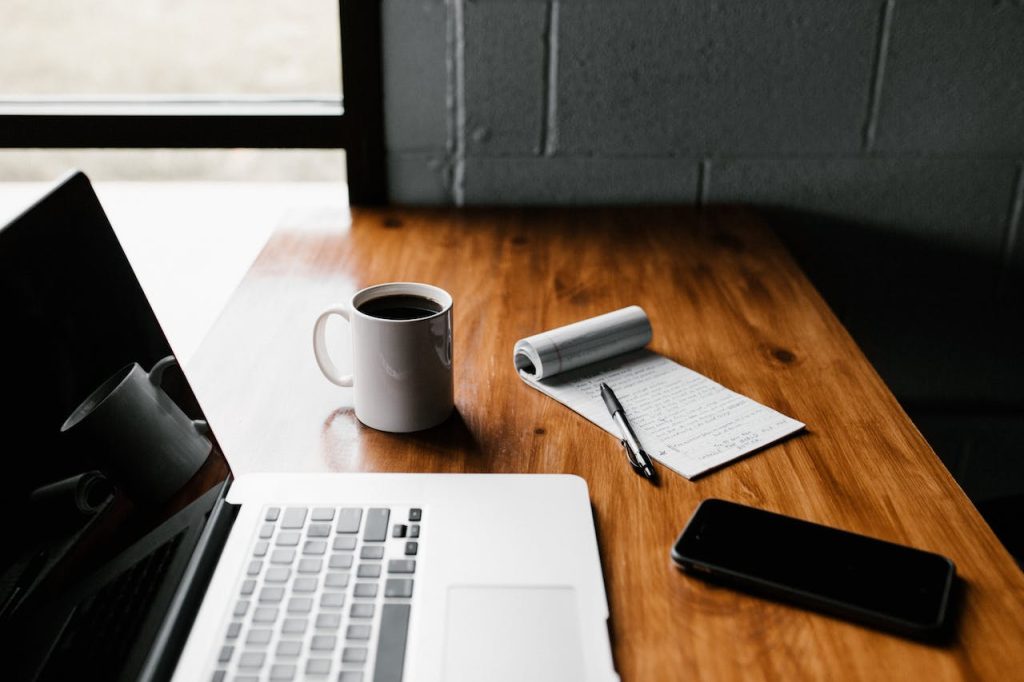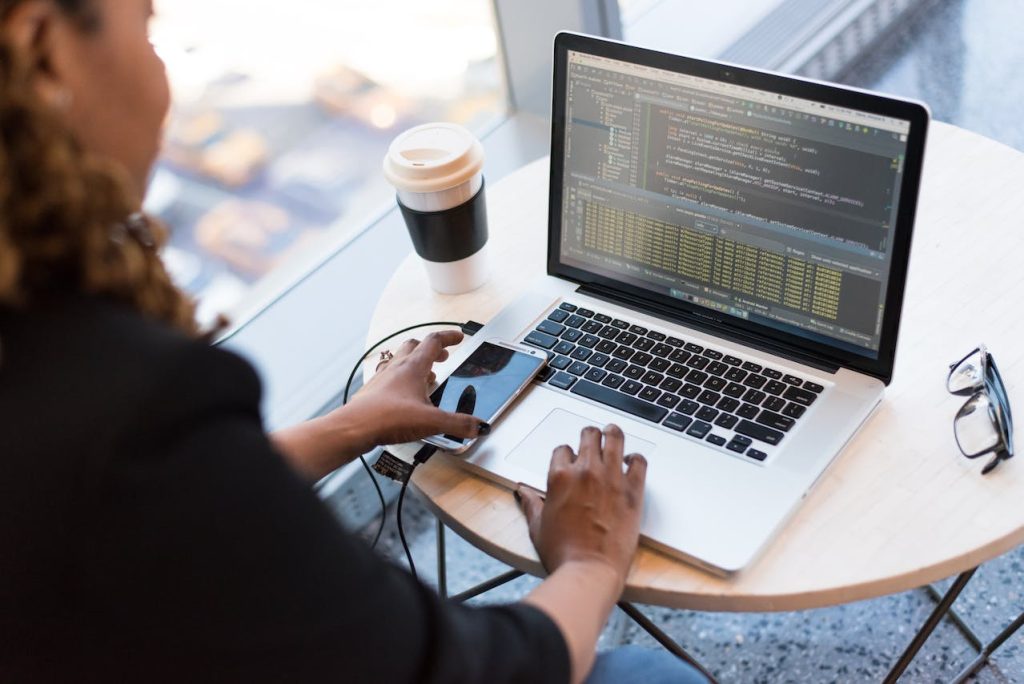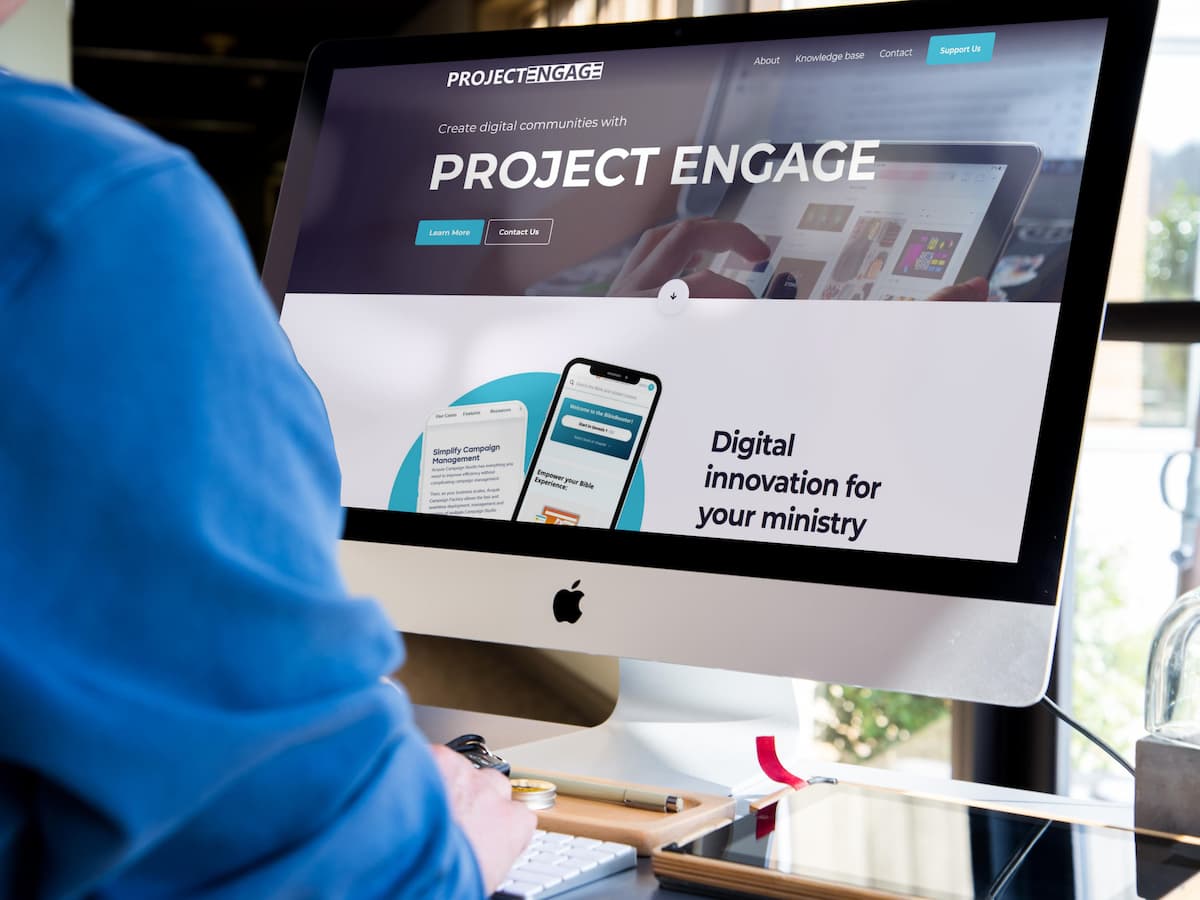
Have you ever wanted to create a preview, how your website or app would look like on different devices? It’s easy, and free!
Follow these steps to get wonderful image that you can share in emails, social media, or website.
- Make a screenshot. You can do it on your computer, smartphone, or tablet, depending on what would you like to have on the image.
- Go to mockuper.net on your web browser.
- Choose the type of device you want to use for your mockup by clicking on the appropriate icon (e.g. desktop, tablet, phone).
- Choose the type of background you want to use for your mockup by clicking on the appropriate icon (e.g. plain color, gradient, image).
- Upload your image by clicking the “Upload Image” button and selecting your file. Alternatively, you can also drag and drop your image onto the mockup canvas.
- Adjust your image by using the controls on the left-hand side of the screen. You can zoom in or out, move the image around, and adjust the brightness and contrast.
- Customize the mockup further by changing the background color, adding text, or adjusting the device orientation.
- Once you’re happy with your mockup, click the “Download” button to save it to your computer.
That’s it! With these easy steps, you can create professional-looking mockups for your website, app, or digital design projects using Mockuper.net.
BONUS TIP: The image you will get from Mockuper will be in large .png format. To use it on web, it is recommended to resize and compress it. Web tool called Squoosh can do exactly that. Give it a try!